Solution Walkthrough
We’ve created a new aspire starter application. The solution explorer should look something like this:
DirectoryWalkthrough.ApiService/
- …
DirectoryWalkthrough.AppHost/
- …
DirectoryWalkthrough.ServiceDefaults/
- …
DirectoryWalkthrough.Web/
- …
App Host
The Orchestration project AppHost is the entry point and where we
configure our services, databases, and other resources.
As I mentioned before if you’ve used ASP.NET Core’s WebHostBuilder
this will feel very familiar.
We can see that the template creates a DistributedApplicationBuilder
and adds our projects to the builder.
To add a project we use the AddProject method, and pass
the project reference which we get from the Projects
metadata object as the generic argument. As long as the AppHost has a reference to
the project in the Walkthrough.AppHost.csproj file
our projects will appear as properties from the Projects global object.
var builder = DistributedApplication.CreateBuilder(args);
var apiService = builder.AddProject<Projects.Walkthrough_ApiService>("apiservice");
builder.AddProject<Projects.Walkthrough_Web>("webfrontend")    .WithExternalHttpEndpoints()    .WithReference(apiService);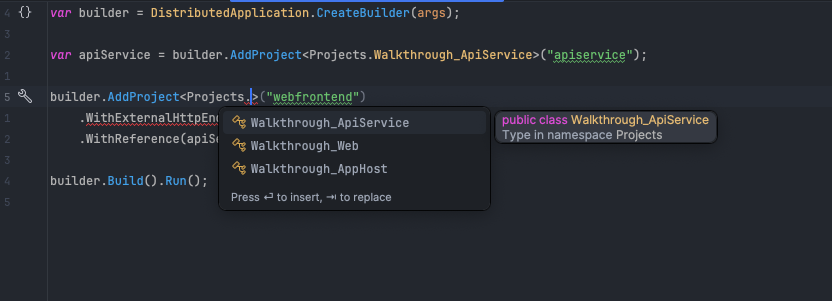
We can see that when calling AddProject the method
it will return a IResouceBuilder<ProjectResource>,
the ProjectResource is specific to adding .NET projects,
but the IResourceBuilder
interface is used for all resources. We can then pass
our returned IResourceBuilder to other projects as references.
This is happening in the above code where we pass the apiService
to the webfrontend project. This will handle the networking
between the two projects, similar to a docker compose
configuration:
services: apiService: image: ${DOCKER_REGISTRY-}walkthrough_apiservice build: context: . dockerfile: ApiService/Dockerfile webFrontend: image: ${DOCKER_REGISTRY-}walkthrough_webfrontend build: context: . dockerfile: WebFrontend/Dockerfile depends_on: - apiServiceRunning the AppHost
Finally in the Program.cs file of the AppHost
we see the call to build and run the Distributed Application:
builder.Build().Run();Before getting into the Service Defaults project, lets
run the AppHost and take a look at the .NET Aspire dashboard.
Making sure the AppHost project is the startup project
either hit F5 or run dotnet run from the AppHost directory.
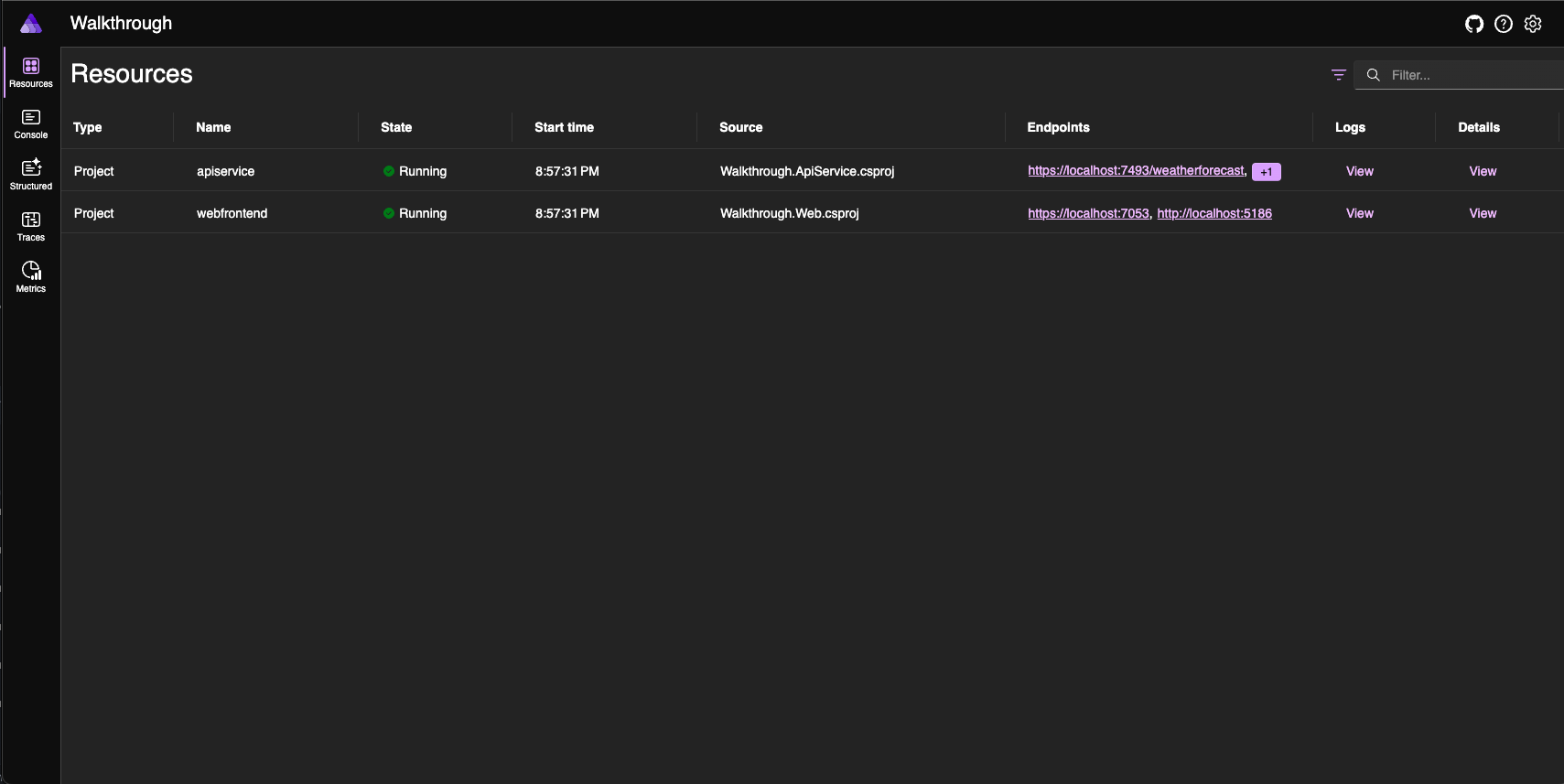
After starting AppHost, a browser window should open
which is directed to the Aspire dashboard.
The Dashboard
The dashboard has a lot of information about the state
of our services, events, logs, health checks, and
links to launch swagger or frontend projects.
If we click on the https link for the webfrontend
project we’re brought to a typical Blazor application.
If we check the Program.cs file in the Web project
we can see a base address is being added to a http client
service
builder.Services.AddHttpClient<WeatherApiClient>(client => { // This URL uses "https+http://" to indicate HTTPS is preferred over HTTP. // Learn more about service discovery scheme resolution at https://aka.ms/dotnet/sdschemes. client.BaseAddress = new("https+http://apiservice"); });We’ll get into how this works in the next section, but
for now by checking the GetWeatherAsync method of the WeatherApiClient
we can see that the Web project is getting its weather information
from the ApiService service.
await foreach (var forecast in httpClient.GetFromJsonAsAsyncEnumerable<WeatherForecast>("/weatherforecast", cancellationToken)){    if (forecasts?.Count >= maxItems)    {        break;    }    if (forecast is not null)    {        forecasts ??= [];        forecasts.Add(forecast);    }}
return forecasts?.ToArray() ?? [];
In the web browser click the Weather link in the Blazor app and return to the dashboard. We’ve triggered requests from both services so there should be information to view in the different tabs.
Console- Shows the same logs you would see in the terminal when running a .NET application.Structured- Shows logs which can be filtered by keywords, log levels, categories, services, and more as well as a details tab with more information about the log.Metrics- Shows the metrics for the different services and can be filtered by service. There are options to view metrics in a graph or table format.Traces- Shows the traces of the requests that have been made to the services. An incredibly useful tab for debugging, we can see when we navigated to Weather tab and even click into the details view to see a waterfall chart of the different requests made.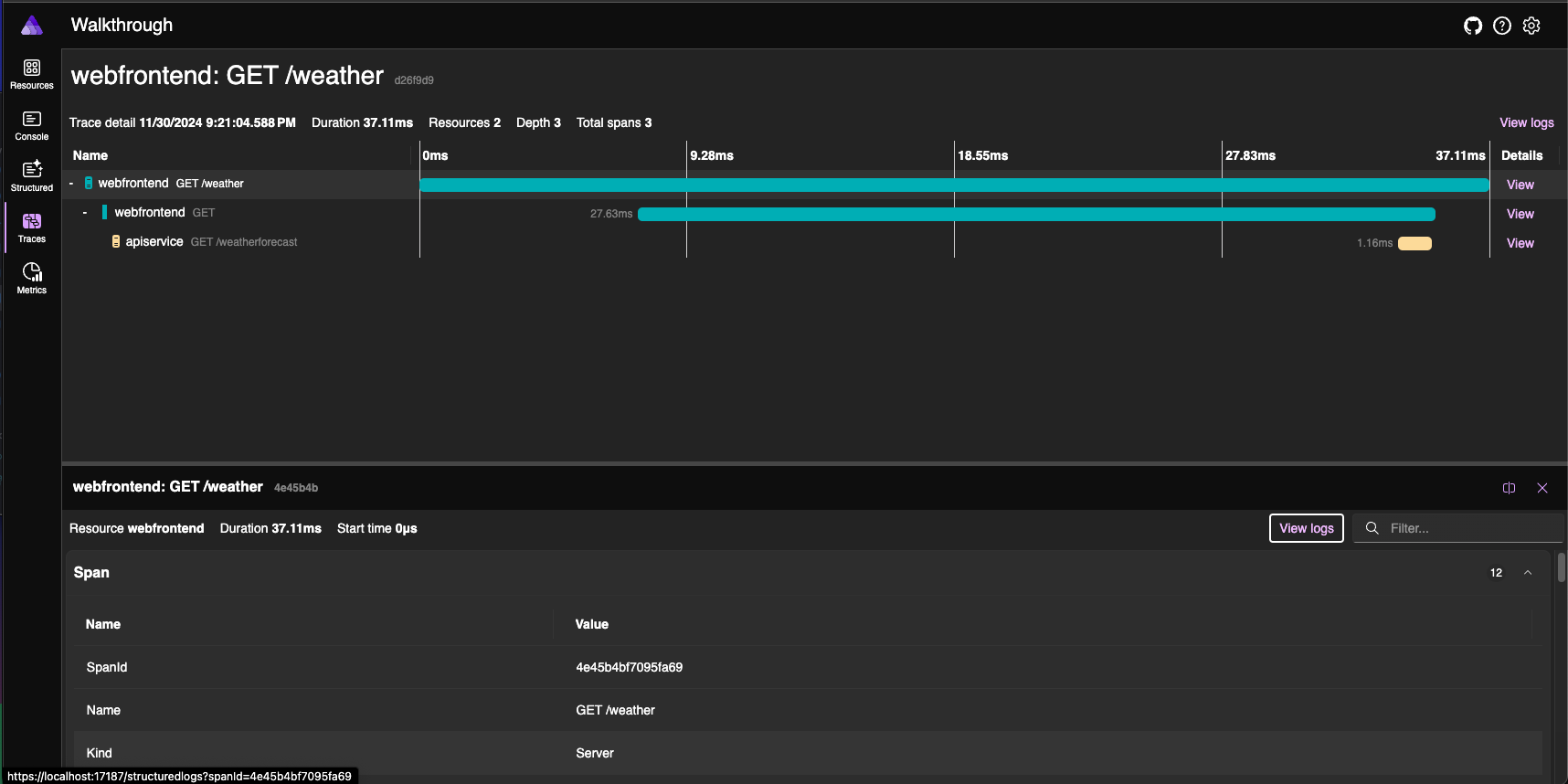
Service Defaults
Each service project in your aspire solution should have a reference
to the ServiceDefaults project. The extension method builder.AddServiceDefaults()
should be called by each service which adds the following:
- OpenTelemetry metrics and tracing (a lot of what we just went through in the dashboard).
- Default health check endpoints.
- Service discovery functionality.
- Configures
HttpClientto work with service discovery.
If we look at the AddServiceDefaults() method
we can see the previously mentioned features
being added.
public static IHostApplicationBuilder AddServiceDefaults(this IHostApplicationBuilder builder){    builder.ConfigureOpenTelemetry();
    builder.AddDefaultHealthChecks();
    builder.Services.AddServiceDiscovery();
    builder.Services.ConfigureHttpClientDefaults(http =>    {        // Turn on resilience by default        http.AddStandardResilienceHandler();
        // Turn on service discovery by default        http.AddServiceDiscovery();    });
    return builder;}